


Article last updated: September 17, 2025
My Xiaomi 14 Ultra‘s built-in Gallery application started acting weird after the latest iteration of HyperOS 2.0.x ROM upgrade, refusing to load some image and video files, acting differently in portrait and landscape modes, showing many blank / ghost thumbnails and so on. Standard repairing procedures you will receive as a suggestion (restart/reboot phone, clear cache, force stop app) did not work. Unfortunately, there was no option to revert the app version to factory default either (“uninstall updates”), so I was really stuck with the corrupted app, and installing 3rd party gallery apps doesn’t look attractive to me.
Xiaomi App – How To Re-Install Stock Factory Version [no root]
Disclaimer: You are doing this at your own risk. I succeeded despite the whole internet advised against it and “world will break”, but your mileage may vary. Completed successfully on Xiaomi 14 Ultra running HyperOS 2.0. The phone is still perfectly functioning without performing factory reset and loosing any data. Gallery app successfully fixed.
Update: There are safer methods of fixing broken thumbnails, and the Xiaomi phone’s Gallery app itself that I accidentally discovered after initially publishing this article. They are described at the end of the main section below.
A little bit of history: Xiaomi Gallery App
The key issue with Xiaomi phones, regardless if you use MIUI-based older models, or HyperOS newer ones, is the annoying fact that Gallery app keeps secret thumbnail copies of all the photos and videos ever taken by the phone (yes, even the deleted ones!). This fact is known for several years now, and there is/was no other solution to free up your storage space but to manually delete the contents of the /Android/com.miui.gallery/ cache folders.
That was fine with older Gallery app versions, but recently, after the HyperOS 2.0.x updates and new revamped Gallery app, it creates an issue with corrupted thumbnails, obsolete simlinks, and media preview/playback functions!
The main issue here is that all files are real and valid, just that the Gallery app cannot open them anymore after manual abrupt/forced cache cleaning procedure, and shows them as corrupt, non-existing, or even in the wrong location when you check the file’s properties info (e.g. if you renamed and moved camera media files into a different folder using File Manager app before forced cache removal procedure).
The side issue here is, obviously, huge amount of wasted space! I accidentally discovered this on my older Xiaomi phone by examining app sizes, and trying to reclaim free storage space. Gallery app was 1.9 GB in size! I searched over the internet and now know that some users have over 10 GB of wasted space! And there is no simple, straightforward built-into-the-app way of managing this key issue.
Why Gallery apps use thumbnail databases in the first place? For speed / responsiveness reason is the answer. Loading huge images, especially hundreds or thousands of them while you scroll your memories is a very demanding processing task, so creating smaller, faster preview copies is the logical solution. The problem, however, occurs when that database becomes broken, and the app is not able to regenerate new updated version of the files.
Under MIUI this issue was non-existent, as the old Gallery app automatically regenerated proper thumbnails when it detected changes.
Under HyperOS 2.0.x that is, unfortunately, no longer the case. The quick fix here was to uninstall Gallery app updates, that is – to restore it to the factory version which initially came with the phone, and which worked flawlessly – always rebuilt thumbnails properly.
However, something changed with the recent updates, and I could no longer revert to the old version. The “new” buggy version became the “factory” one, and hence this article.
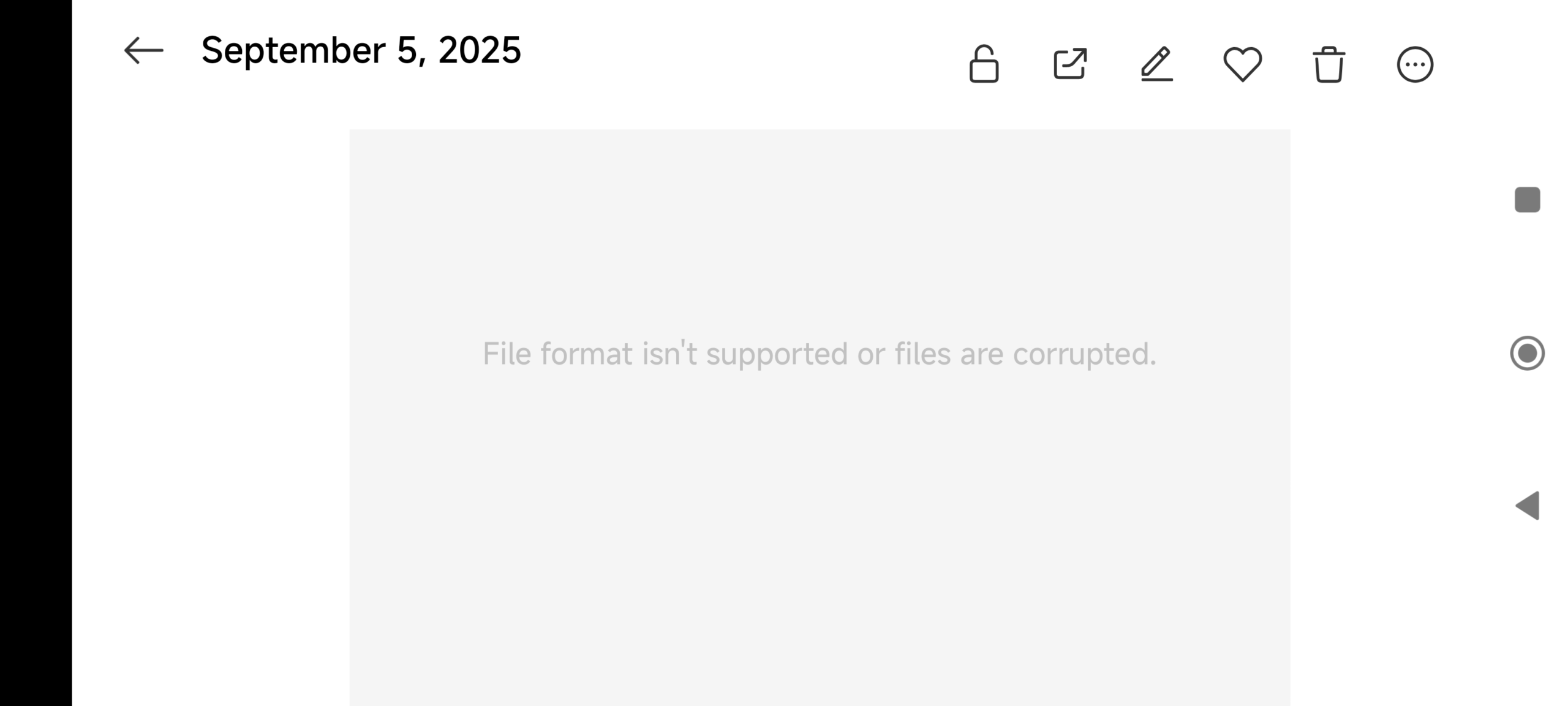
Xiaomi Phone – Corrupted Gallery App – File format isn’t supported or file is corrupted message – app behavior is unpredictable and not functioning properly!
Here’s what I did to finally fix it. This method can likely be used to fix other system apps on Xiaomi phone, as well.
How To Fix Corrupted Xiaomi Gallery App when uninstall updates option isn’t available ?
STEP 1: Enable Developer options and USB Debugging on Xiaomi Phone
- Go to Settings (gear icon) > Additional Settings > About phone > Tap 7 times on OS version (3rd item in the list under Device name and Storage). You are now a developer!
- Go back to Settings > Additional Settings > Developer options > tick on slider to enable it (it becomes blue in default themes).
- While still in Developer options section scroll down to Debugging section and enable USB debugging. To enable it tap on the slider / move it to the right, then select YES / tap on a circle-shaped radio-button, and confirm with OK button after 10 seconds timer runs down (Xiaomi, really??? It’s 2025! You are still using this “security” annoyance of a measure).
Screenshots for illustration are below:
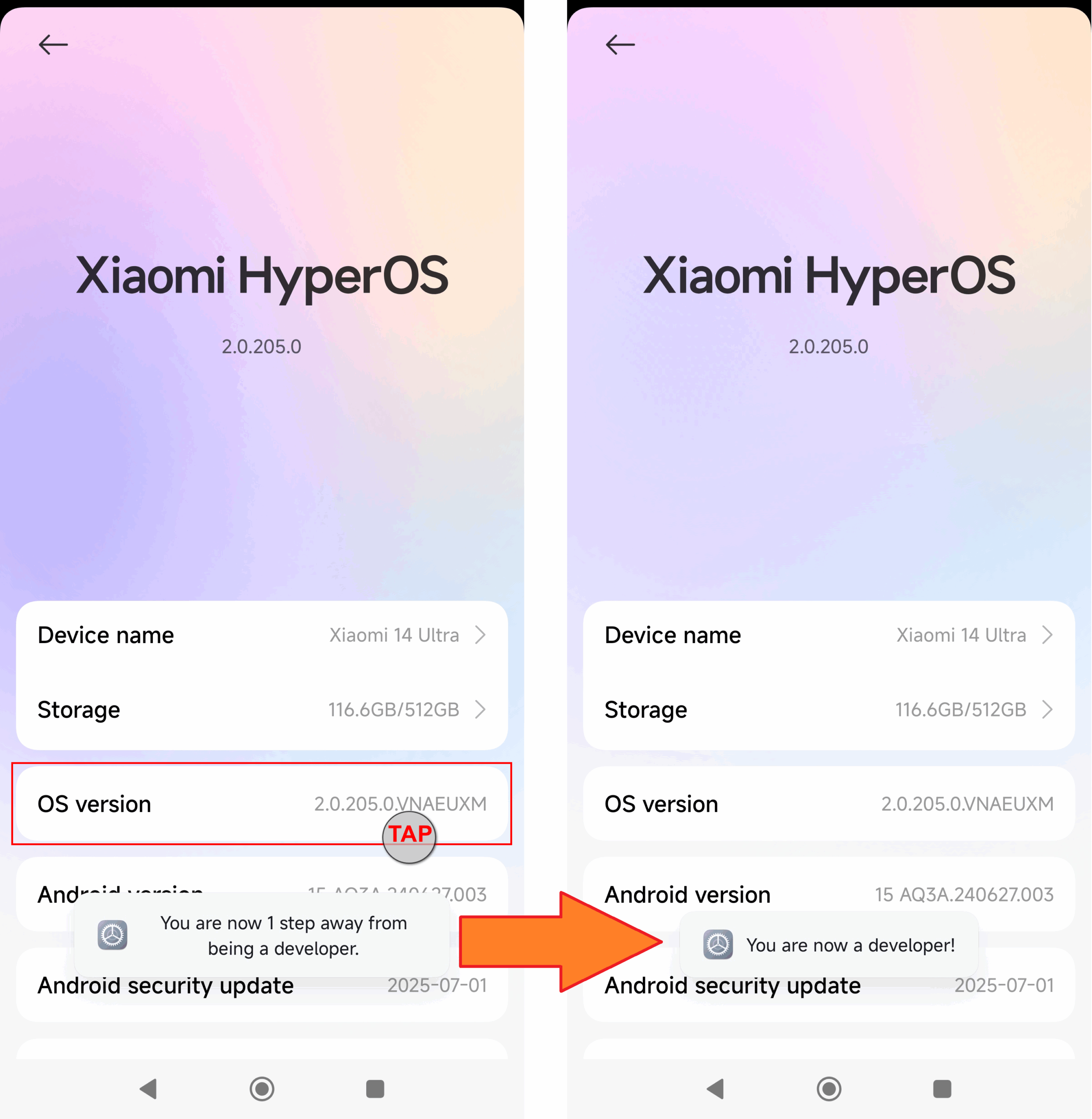
Xiaomi Phone – How To Become A Developer
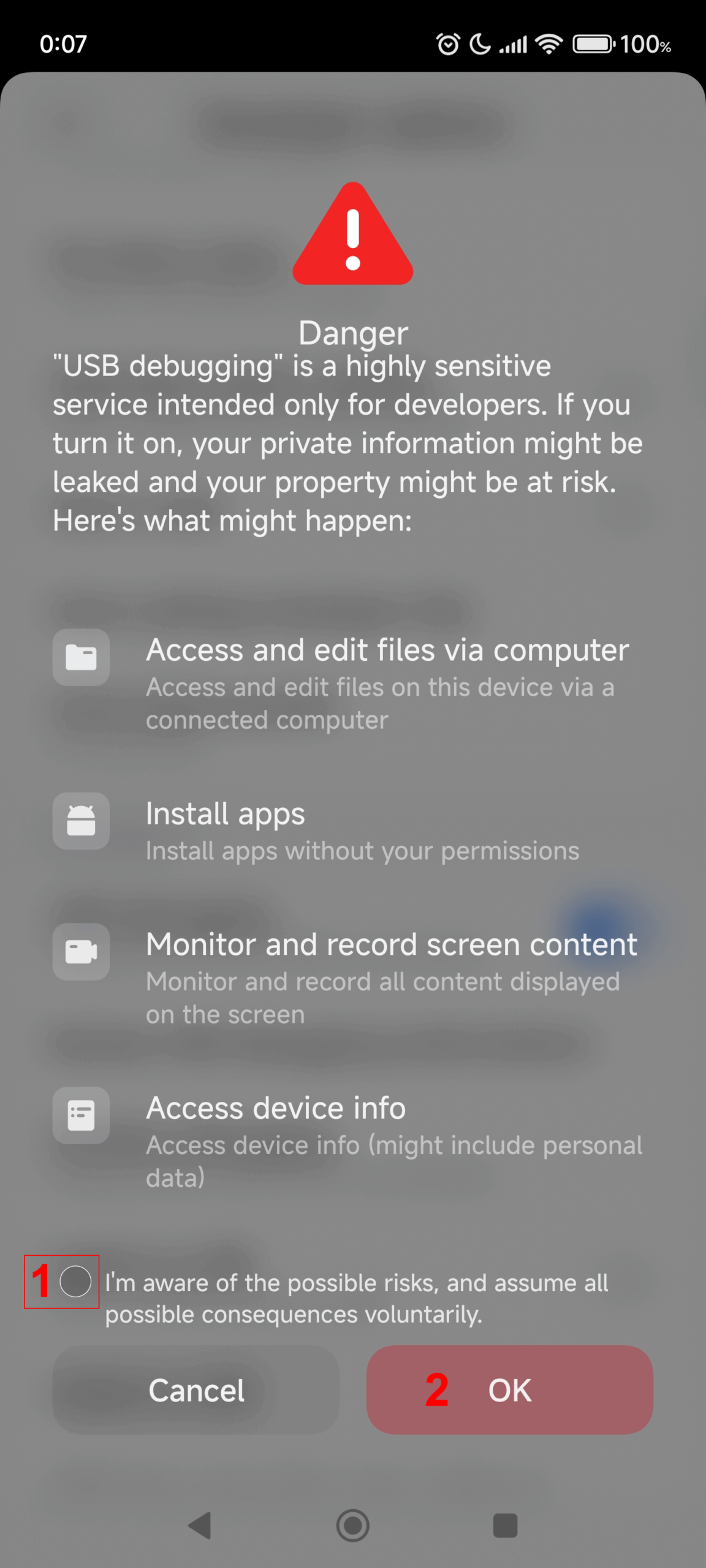
Xiaomi Phone – Enable USB Debugging
STEP 2: Download, install and run ADB AppControl
ADB App Control is a Windows-based application. Your Windows PC must be equipped with a USB port.
- Download, install and run ADB AppControl to connect to your Xiaomi Phone via USB cable.
- Do not worry if you get ACBridge installation error afterwards, we are not interested in fancy native app icons (simply click on CANCEL button after 3-seconds timer runs down).
- Connect your Xiaomi phone via USB cable to computer. AppControl should automatically detect your phone and read app information, model number, etc.
IMPORTANT: DO NOT USE USB Hubs! You must connect your phone DIRECTLY to the USB controller of your PC via original factory USB data+charging cable or quality replacement. Otherwise, ADB AppControl will likely fail to connect to the phone / not work (especially with the cheap USB Hubs and charging-only cables out there).
STEP 3: Use ADB AppControl to uninstall corrupted Xiaomi Gallery app
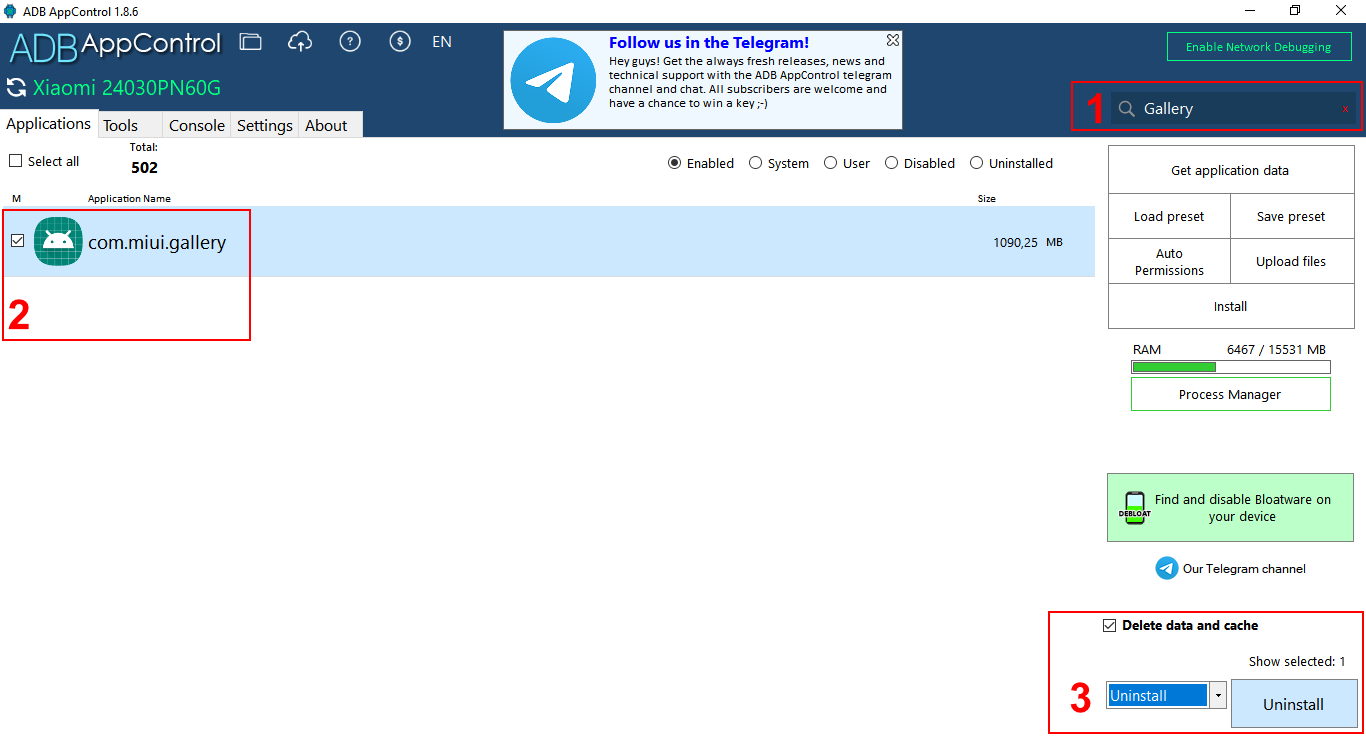
[Applications] Tab must be the selected page in ADB AppControl app.
- Use Search box in top right corner, type “Gallery” and press ENTER key.
- You will see com.miui.gallery in the main window search results list – tick the checkbox to select it.
- Select Uninstall option from the drop-down menu in the bottom right corner and click UNINSTALL button to perform an action (you will notice that button changes its label from “APPLY” to “UNINSTALL” as you select the option from the drop-down selector).

ADB AppControl – Xiaomi Gallery App Uninstall
- Confirm “all hell break loose” ominous warning and proceed.
ADB AppControl – App Uninstall Warning
- DONE! You should see that the action was performed successfully and 1/1 app was uninstalled.

Go back to your phone to verify – Gallery app is nowhere to be found! The icon should be gone. The phone will still work, though*.
STEP 4: Re-Install Stock Factory Xiaomi Gallery App back to Xiaomi phone (the uncorrupted version)
DO NOT be tempted at this stage to download various .apk files from APKMirror or other sources, as they will likely not work, at least not under HyperOS 2. Either installation will fail, or various instability issues will occur, depending on the model and software / OS versions. Use below steps to restore the “original factory”** version.
[Console] Tab must now be the selected page in ADB AppControl app.
- Type adb shell + press ENTER key.
ADB AppControl – Xiaomi Gallery App Install – ADB Shell command
- New black-background command line window will pop-up / open.
- Type inside this new window the command below + press ENTER key:
cmd package install-existing com.miui.gallery
Here’s how it should look:
ADB AppControl – Xiaomi Gallery App Install – ADB Shell Command – Install Xiaomi Gallery App from ROM

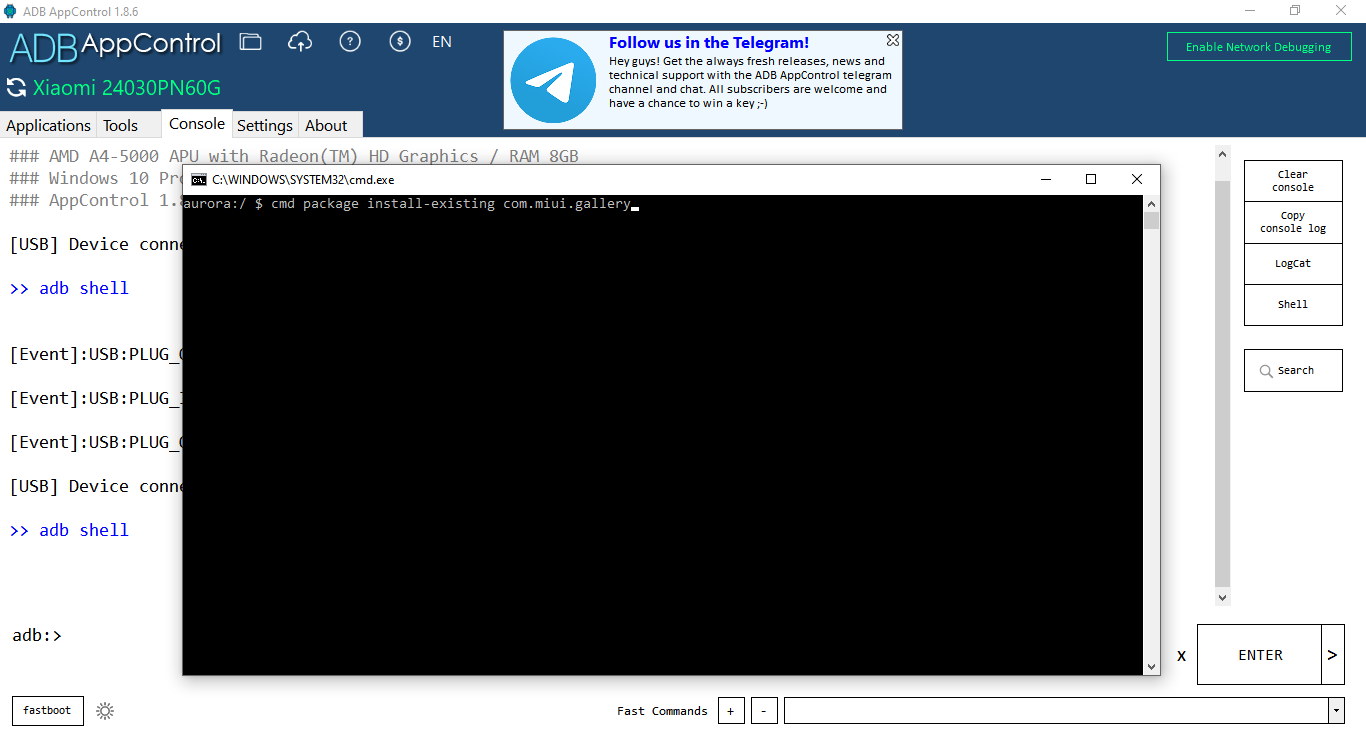
Xiaomi Gallery app should be successfully restored from your factory ROM!
STEP 5: Revert All Security Modifications
- Disconnect USB cable from your PC and Phone.
- Disable USB Debugging on your phone for security reasons.
- Disable Developer options on your phone for security reasons.
- Run refreshed Xiaomi Gallery app and enjoy! :)
DONE.
Notes
- * it was at least in my case :)
- ** by “factory” here I mean the base version of your current ROM, not necessarily the version it came with the phone when you first purchased and run it. In order to revert to that old version, well, factory reset might be the only way.
BONUS TIPS
Of course, there’s another way to do this using ADB AppControl graphical interface (without shell and command code). You probably noticed there’s also a SAVE option in the drop-down selector with Uninstall and Disable commands. Well, SAVE is used to create local backups of the phone apps (on your PC > ADB AppControl folder > downloads folder). However, in order to be able to install them back onto the phone you will also need to enable Install via USB option under Debugging section in Developer options menu on Xiaomi phone, and for that option to be enabled you need to create a Mi Account and sign into it on your phone, which is not required in above tutorial using ROM restore and cmd terminal commands!
How To Rebuild Individual Broken Thumbnails in Xiaomi Gallery app
I accidentally discovered a simpler way to restore broken thumbnails in new Xiaomi Gallery app without reinstalling it. This method is fine if you have just a handful of broken images and videos.
Here’s what to do:
- Open Gallery app.
- Clear Trash bin content. We need an empty Trash bin / Recycle bin, otherwise we won’t be able to easily tell which item(s) we wish to restore, and which item(s) were deleted before on purpose because we wanted it so!
Open Trash bin / Recycle bin: while inside Gallery app’s main view: swipe from right to left side of the screen and scroll down under More section >> Recently deleted, and permanently delete all items. Now we have an empty Recycle bin ready to be used with our little trick.
MAKE FINAL CHECK IF YOU REALLY WANT TO DELETE ITEMS IN THE TRASH BIN.
THERE IS NO EASY WAY TO RESTORE THEM LATER! - Go back to the main Gallery view.
- Select all the broken image thumbnails / previews.
- Move them to Trash bin.
- Open Trash bin / Recycle bin again.
- Start selecting images one by one image simply by holding your finder for ~ 1 second. Then — as you start selecting — look at the upper right corner where new icon will appear: tap on it to check all items.
- Tap restore icon at the bottom left corner to undelete all items.
Go back to the main Gallery view and your thumbnails should be rebuilt and displayed properly. However, it may occur for some items that they’ll still refuse to open / play normally, even if their thumbnails are now properly displayed. Simply repeat this procedure again for such items, and they should be playable again.
Xiaomi Gallery app: How to properly clear all app data (including obsolete cache and thumbnails)
I accidentally discovered a proper way to clear all Xiaomi Gallery app’s data, including obsolete cache files, and settings. Yes, this method works even when “uninstall updates” option is unavailable from the regular app info page! If I only new this before going through all the trouble described above… well, live and learn!
Naturally, this is buried deep into Xiaomi System settings, hidden from the eyes of ordinary mortals. I mean, it is placed in logical menus, don’t get me wrong, but this option should be available right into Gallery app’s info page and settings!
Here’s what to do:
- Open Settings app/icon
- Tap on About Phone
- Tap on Storage
- Tap on Apps and data
- Scroll down and tap on Gallery app
- You will see both Clear cache and Clear all data options here! Tap on Clear all data
- Confirm with OK button
Gallery app will be reset to default factory “clean” state (again, not necessarily the version which your phone originally came with), and your storage space will be reclaimed! Of course, when you tap on Gallery app now, it will run for the first time and you will have to set its options again (e.g. turn on optional Google Photos backups).
Here’s a video that demonstrates how to get to this option:








![Xiaomi App – How To Re-Install Stock Factory Version – How To Fix Corrupted Gallery App [no root]](https://tehnoblog.org/wp-content/uploads/2021/07/Pixabay-Paper-Airplane-72x33.png)
![Xiaomi App – How To Re-Install Stock Factory Version – How To Fix Corrupted Gallery App [no root]](https://tehnoblog.org/wp-content/uploads/2021/08/Google-Account-Gmail-2SV-2-Step-Verification-72x41.png)
![Xiaomi App – How To Re-Install Stock Factory Version – How To Fix Corrupted Gallery App [no root]](https://tehnoblog.org/wp-content/uploads/2021/11/Mikrotik-Router-hAP-lite-52x43.png)
![Xiaomi App – How To Re-Install Stock Factory Version – How To Fix Corrupted Gallery App [no root]](https://tehnoblog.org/wp-content/uploads/2019/06/Malfunctioning-Graphics-Card-with-Vertical-Stripe-Lines-and-Image-Artifacts-Windows-OS-72x43.jpg)
![Xiaomi App – How To Re-Install Stock Factory Version – How To Fix Corrupted Gallery App [no root]](https://tehnoblog.org/wp-content/uploads/2020/06/Apple-Logo-2133x1200-1-72x41.jpg)
![Xiaomi App – How To Re-Install Stock Factory Version – How To Fix Corrupted Gallery App [no root]](https://tehnoblog.org/wp-content/uploads/2021/06/Google-Logo-43x43.png)
![Xiaomi App – How To Re-Install Stock Factory Version – How To Fix Corrupted Gallery App [no root]](https://tehnoblog.org/wp-content/uploads/2018/01/YouTube-Logo-1500x844-72x41.png)
![Xiaomi App – How To Re-Install Stock Factory Version – How To Fix Corrupted Gallery App [no root]](https://tehnoblog.org/wp-content/uploads/2019/01/Viber-App-Logo-1600x1600-43x43.png)
![Xiaomi App – How To Re-Install Stock Factory Version – How To Fix Corrupted Gallery App [no root]](https://tehnoblog.org/wp-content/uploads/2020/06/How-To-Unlock-Android-Phone-with-Broken-Screen-72x41.jpg)
![Xiaomi App – How To Re-Install Stock Factory Version – How To Fix Corrupted Gallery App [no root]](https://tehnoblog.org/wp-content/uploads/2019/08/Video-Stabilization-Comparison-DaVinci-Resolve-vs-Adobe-Premiere-vs-VirtualDub-Deshaker-72x41.jpeg)
![Xiaomi App – How To Re-Install Stock Factory Version – How To Fix Corrupted Gallery App [no root]](https://tehnoblog.org/wp-content/uploads/2020/12/Video-Repair-Guide-2017-Broken-Film-Strip-No-Text-RED-72x41.png)
![Xiaomi App – How To Re-Install Stock Factory Version – How To Fix Corrupted Gallery App [no root]](https://tehnoblog.org/wp-content/uploads/2017/05/Video-Repair-Guide-Broken-Film-Strip-72x41.png)
![Xiaomi App – How To Re-Install Stock Factory Version – How To Fix Corrupted Gallery App [no root]](https://tehnoblog.org/wp-content/uploads/2015/05/3.5-mm-Audio-Jack-TRS-Connector-Metal-43x43.png)



![Xiaomi App - How To Re-Install Stock Factory Version - How To Fix Corrupted Gallery App [no root]](https://tehnoblog.org/wp-content/uploads/2025/09/Xiaomi-Gallery-App-Code-Bugs-Artwork-1024x576.png)














Comments
Post A Comment